Setup
A checklist to get your app ready in the dashboard. Create your account, choose how you'll integrate, then set up your app for that path.
1. Create your account
Don't have a TapResearch account yet? Sign up — it's quick. Choose the Publisher/Developer option. You'll need an account and an API token to integrate.
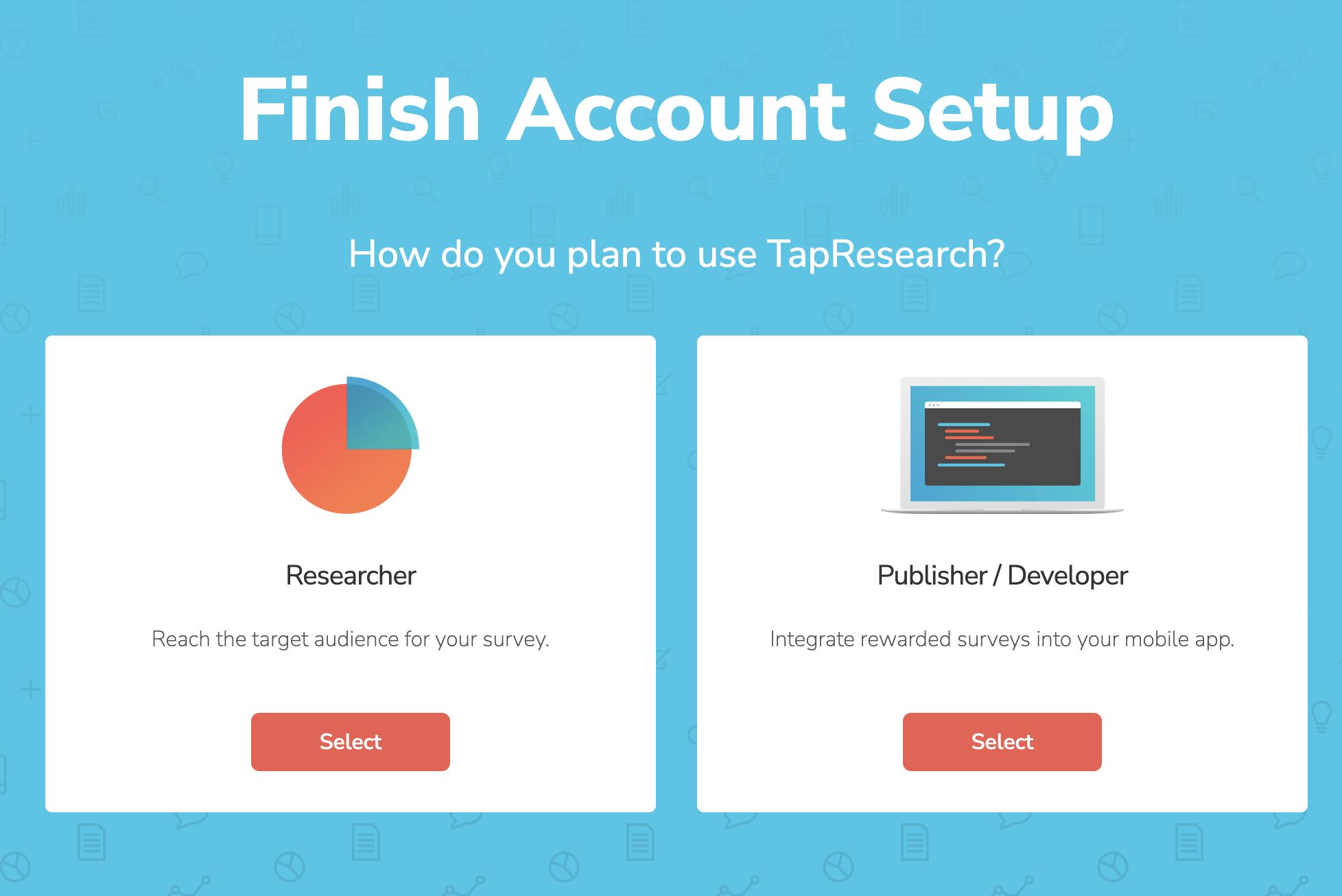
Account approval typically takes a few business hours.
We typically review new accounts within a few hours. Need access sooner? Email developers@tapresearch.com.
2. Choose your integration
Decide how you'll integrate before you create your app — your choice determines how the app is set up. Compare the four paths and pick the one that fits your product.
3. Create your app
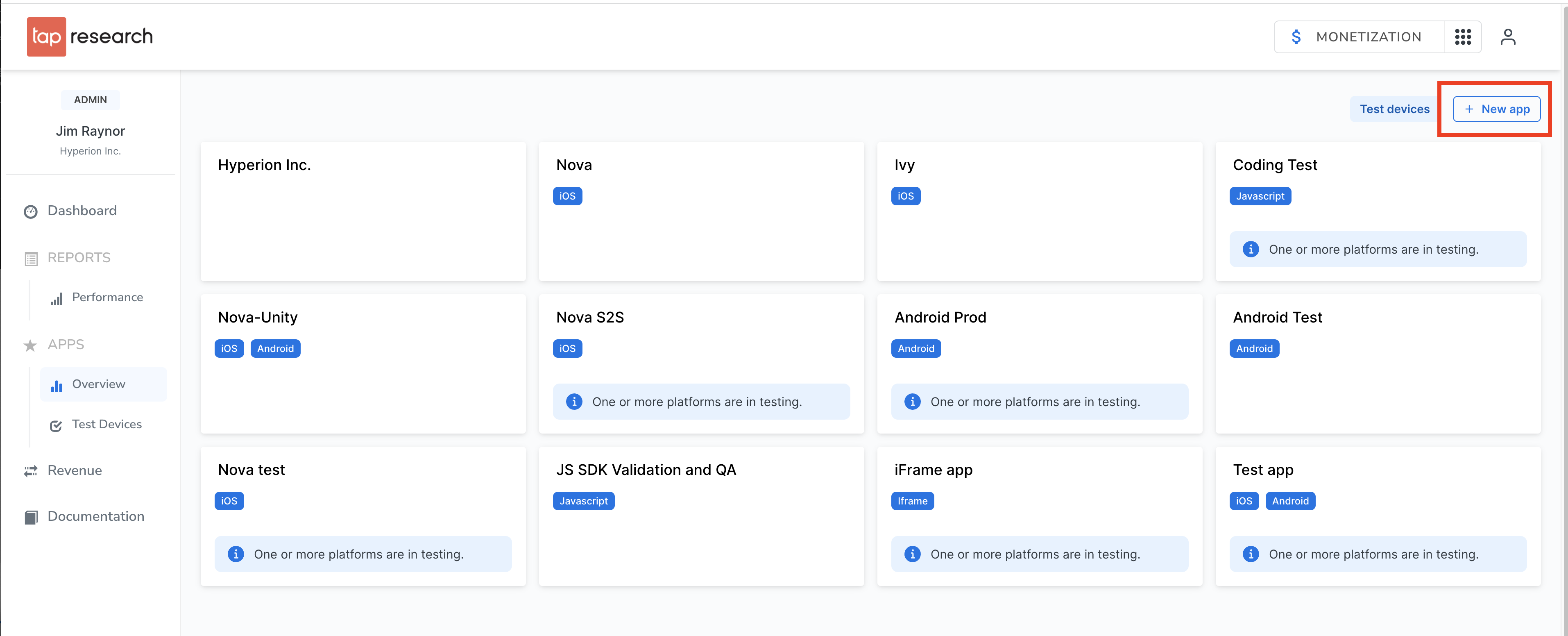
Create your app from the Supplier Dashboard and select the integration path you chose above. That configures the app correctly for you behind the scenes.
- SDK — select each platform you ship on (iOS, Android, or both). Each platform gets its own API token, so use the matching token in each build.
- Hosted Link, Eligibility API, or Survey Feed API — one app is all you need. The link or endpoint is the same across every surface (mobile and web), so a single app and token covers them all.
You can create separate apps for different paths.
4. Configure app settings
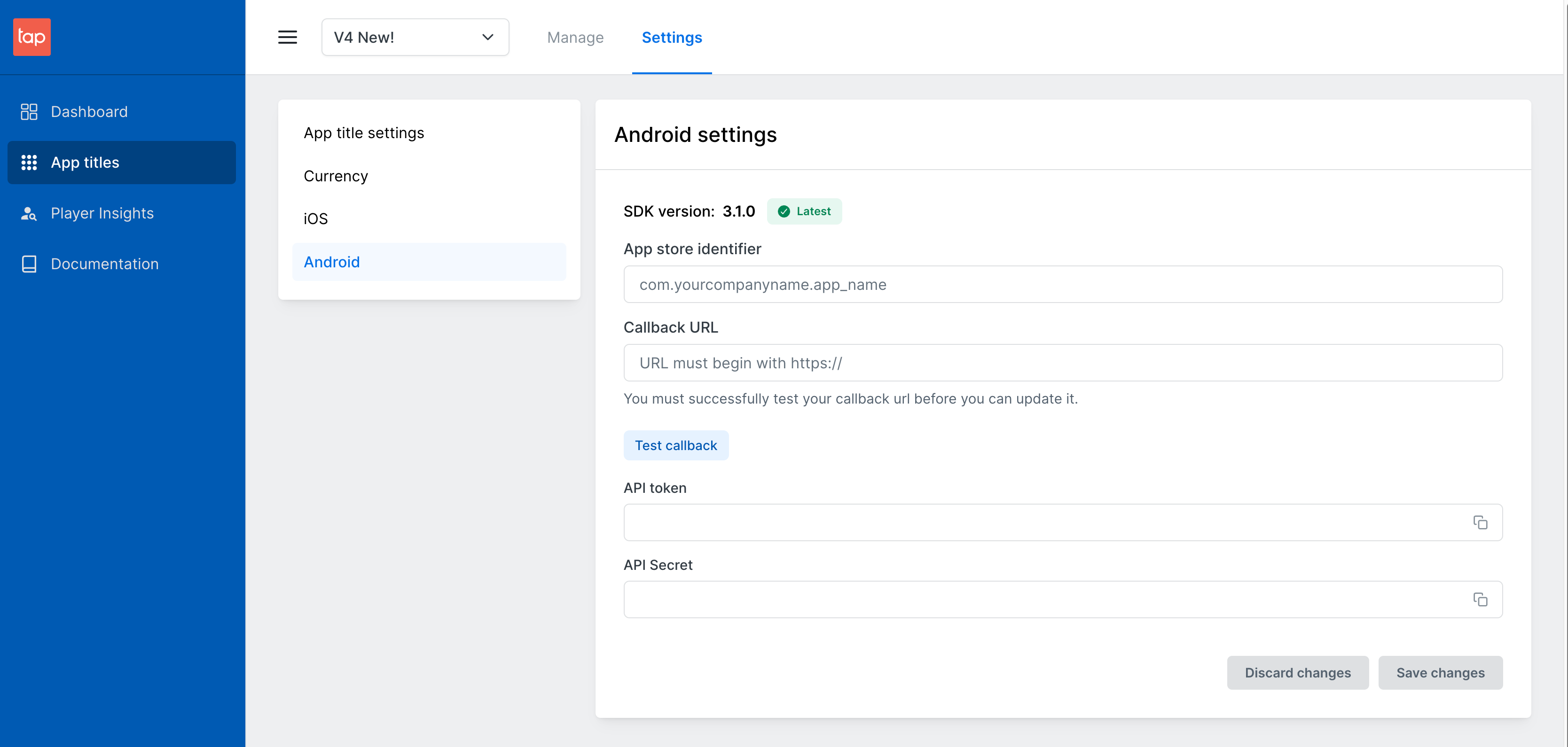
- Colors — primary and secondary action colors for the survey wall (HEX codes).
- App Store identifier — set it now, or leave it blank and fill it in later.
- Callback URL — optional; called when a user completes a survey (each platform has its own, but they can share a value). See Callbacks.
5. Add a currency
A currency is required before you can create a placement. Set its name, display name, image, exchange rate, and (recommended) a profile reward.
→ Currencies · Exchange rates · Profile reward
6. Create placements
Placements are the slots where your content appears. Three defaults are created automatically; add more as needed and reference each by its code tag.
7. Add a test device
Until you go live, only test devices can access content — add one before you test.
→ Testing
8. Build your integration
Now that your app is set up, follow your path's guide to build it.
9. Test and go live
Verify everything in test mode, then promote your app to live.
→ Testing
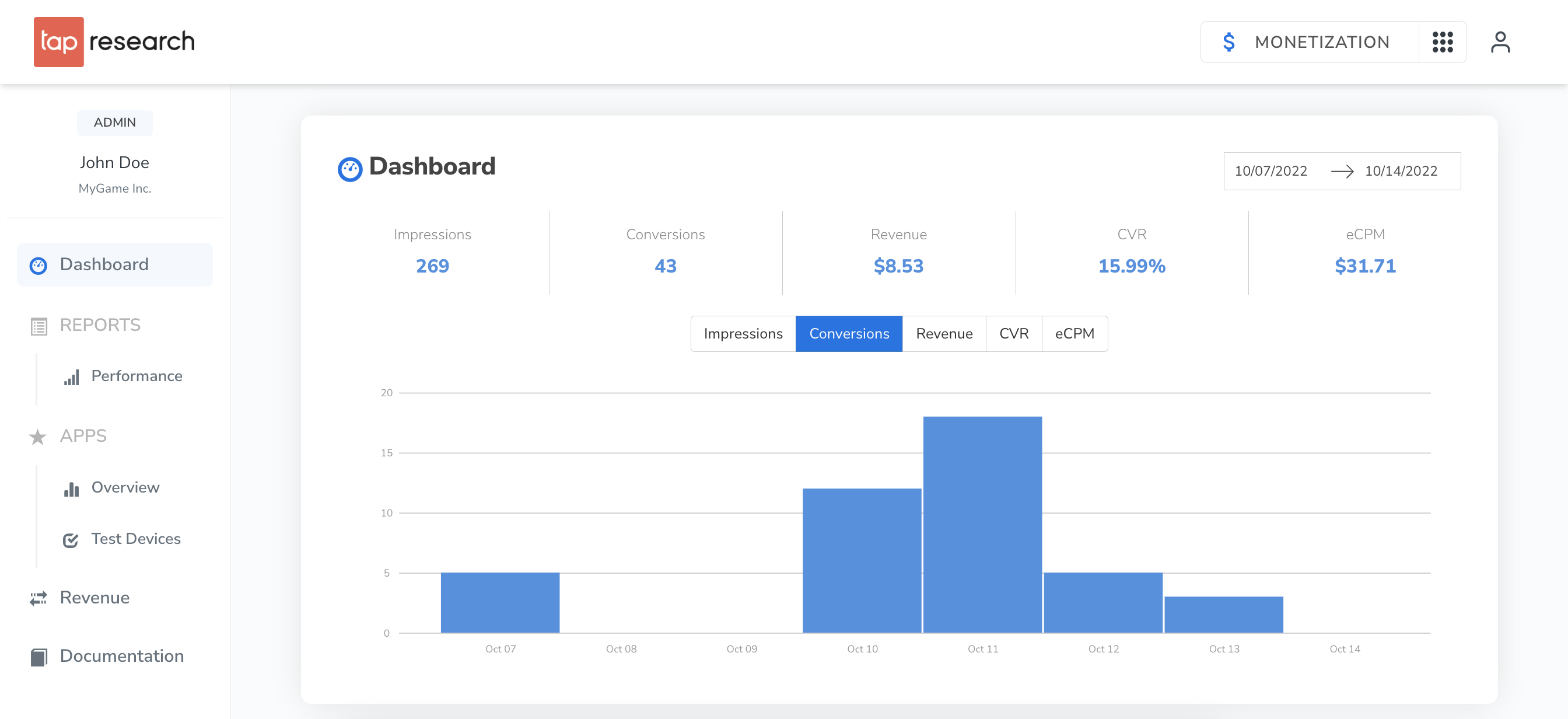
Access the Publisher Dashboard
Once you have an account, the Publisher Dashboard is your home for managing apps, updating settings, accessing your API token, and monitoring performance.